Cognos Error :
[ ERROR ] CAM-CRP-1315 Current configuration points to a different Trust Domain than originally configured.
[ ERROR ] The cryptography information was not generated
Solution : Delete csk,signkeypair and encryptkeypair folders in configuration directory and resave Configuration
Manager.
Interpretation : This can usually happen when you are trying to point from Development environment to Production environment or any other environment by simply changing the configuration in Cognos Configuration Manager.It will prompt informational message as unable to decrpyt userid password.
You will get same error for Transformer too and solution is same.
Wednesday, September 29, 2010

Friday, June 18, 2010
Configuring Essbase Connection for Cognos 8.4
Steps to Configure Essbase 7.1 in Cognos 8.4 Server
Environment : Cognos 8.4 in Unix Server,Essbase 7.1
Hello Friends, I did not find any good details about it in Cognos documentation,so thought to share with you all so that you do not have to troubleshoot from your side.
Also if you encounter below error,this solution can also help:
Error message : Unable to find or load the shared library 'ld.so.1: BIBusTKServerMain: fatal: /global/site/vendor/cognos/c8_64/./bin/libDB2OlapODP.so: open failed: No such file or directory - /global/site/vendor/cognos/c8_64/./bin/libDB2OlapODP.so' (or one of its dependents) containing the provider 'DB2OlapODP'. Please contact your administrator.
Step1 : Installation of Essbase Client on Cognos Server.
The structure will look like this once you install essbase client in Cognos Unix Server.The installation is pretty easy for Essbase and mostly have to click next.
Servername://Hyperion $ ls -ltr
total 4
drwxr-xr-x 3 common
drwxr-xr-x 9 Essbase
Step 2 : Include the arbor path in Cognos server script.In our case we are using unix so the path will look like as below :
# ESSBASE
export ARBORPATH=//Hyperion/Essbase;
export LD_LIBRARY_PATH=$otherpath:$ARBORPATH/bin:$LD_LIBRARY_PATH;
export PATH=$otherpath:$ARBORPATH/bin:$PATH;
Step 3 : Change the following entries in qseconfig.xml in/configuration directory.
Change following line :
Search for provider name="DB2OlapODP" and in that change
libraryName=doodp82 from existing libraryName=essodp93
By default cognos comes on configured with Essbase 9 so to change to Essbase 7.1 you have to make below changes.
Step 4 : Restart the Services using configuration manager.
Step 5 : Test the connection by creating a Data Source in Cognos connection and pointing it to your Essbase server.Make sure the firewall ports are open between the servers.
Environment : Cognos 8.4 in Unix Server,Essbase 7.1
Hello Friends, I did not find any good details about it in Cognos documentation,so thought to share with you all so that you do not have to troubleshoot from your side.
Also if you encounter below error,this solution can also help:
Error message : Unable to find or load the shared library 'ld.so.1: BIBusTKServerMain: fatal: /global/site/vendor/cognos/c8_64/./bin/libDB2OlapODP.so: open failed: No such file or directory - /global/site/vendor/cognos/c8_64/./bin/libDB2OlapODP.so' (or one of its dependents) containing the provider 'DB2OlapODP'. Please contact your administrator.
Step1 : Installation of Essbase Client on Cognos Server.
The structure will look like this once you install essbase client in Cognos Unix Server.The installation is pretty easy for Essbase and mostly have to click next.
Servername:/
total 4
drwxr-xr-x 3 common
drwxr-xr-x 9 Essbase
Step 2 : Include the arbor path in Cognos server script.In our case we are using unix so the path will look like as below :
# ESSBASE
export ARBORPATH=/
export LD_LIBRARY_PATH=$otherpath:$ARBORPATH/bin:$LD_LIBRARY_PATH;
export PATH=$otherpath:$ARBORPATH/bin:$PATH;
Step 3 : Change the following entries in qseconfig.xml in
Change following line :
Search for provider name="DB2OlapODP" and in that change
libraryName=doodp82 from existing libraryName=essodp93
By default cognos comes on configured with Essbase 9 so to change to Essbase 7.1 you have to make below changes.
Step 4 : Restart the Services using configuration manager.
Step 5 : Test the connection by creating a Data Source in Cognos connection and pointing it to your Essbase server.Make sure the firewall ports are open between the servers.
Thursday, May 27, 2010
Arithmetic overflow or other arithmetic exception while selecting values from Report Studio query
Issue : User trying to select query from Report studio,by selecting the query item and it displayes below error message
UDA-SQL-0114 The cursor supplied to the operation "APICursor::OpenResult" is inactive.
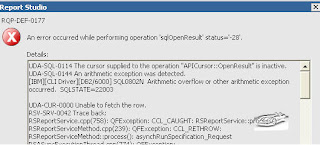
UDA-CUR-0000 Unable to fetch the row.
Anaysis :
When checked in detail the query item was a numeric value with a large no of rows in database.
The column is integer and the rollup is defined as Automatic and Aggregation function is defined as Total.
In the expression editor, when searching for values for a data item, the results you obtain may contain unexpected results if the data item is not a string data type. Because users can edit the expression for a data item, IBM Cognos 8 cannot determine with certainty what the data type is.
Therefore, IBM Cognos 8 guesses the data type of the data item by looking at its aggregate and rollup aggregate set
Try to change the Aggregation function and Roll up aggregation to Not Applicable and then try searching the values.
The Things you can try is changing the attribute from Framework manager itself.
Note : The below observations are just based on my analysis incase you find some other reasons and solutions for its,please let me also know.
UDA-SQL-0114 The cursor supplied to the operation "APICursor::OpenResult" is inactive.
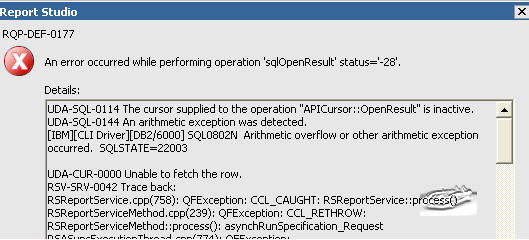
UDA-SQL-0144 An arithmetic exception was detected.
[IBM][CLI Driver][DB2/6000] SQL0802N Arithmetic overflow or other arithmetic exception occurred. SQLSTATE=22003
UDA-CUR-0000 Unable to fetch the row.
Anaysis :
When checked in detail the query item was a numeric value with a large no of rows in database.
The column is integer and the rollup is defined as Automatic and Aggregation function is defined as Total.
In the expression editor, when searching for values for a data item, the results you obtain may contain unexpected results if the data item is not a string data type. Because users can edit the expression for a data item, IBM Cognos 8 cannot determine with certainty what the data type is.
Therefore, IBM Cognos 8 guesses the data type of the data item by looking at its aggregate and rollup aggregate set
Try to change the Aggregation function and Roll up aggregation to Not Applicable and then try searching the values.
The Things you can try is changing the attribute from Framework manager itself.
Note : The below observations are just based on my analysis incase you find some other reasons and solutions for its,please let me also know.
Friday, February 19, 2010
Modeler Role setting for Cognos 8 incase you do not want to give Server Admin rights
Problem : Got new transformer licenses,but need to setup Modeler role in Cognos 8 configuration.Do not want to give System Administrator roles to
modelers and want to restrict access only what they will require.
Error Messages :
TR0164 Data source create problem. CCL-RCI-0002 The Soap server returned a Soap fault.
CM-REQ-4012 you do not have the appropriate permissions to update or delete the object "/Directory/Cognos" or a related object
Solution : Some of the points are from Cognos documentatin,however it is not more specific there in document.
1) Database client software is installed, or available for modelers to install, on the Transformer computers that are used to access IBM Cognos 8 data sources.
2) Modelers must have privileges to create a data source in IBM Cognos Administration.
The good way to do it is create a role as Cognos modeler in Cognos group and assign the roles required as below to it.The individual modeller ids can be
added to group then.
Go to IBM Cognos Configuration.
To enable capabilites select the Administrator Set Properties tab.Add the Modeler group you created and assign just traverse permission here.
Click on Administration and select Set Properties for Data Source Connections.Add the Modeler group and assign read,write,execute and traverse permission here.
Go back to main Capabilites page and select Set Properties for Cognos Viewer.Add the Modeler group and assign execute and traverse permission here.
3) Modelers must have access to a location in which to store the PowerCube after building it.
4) To build PowerCubes on a specific Transformer server, modelers should have FTP privileges to transfer models and execute privileges to build cubes on that server.
Normally its good idea to restrict access as far as possible in server.
modelers and want to restrict access only what they will require.
Error Messages :
TR0164 Data source create problem. CCL-RCI-0002 The Soap server returned a Soap fault.
CM-REQ-4012 you do not have the appropriate permissions to update or delete the object "/Directory/Cognos" or a related object
Solution : Some of the points are from Cognos documentatin,however it is not more specific there in document.
1) Database client software is installed, or available for modelers to install, on the Transformer computers that are used to access IBM Cognos 8 data sources.
2) Modelers must have privileges to create a data source in IBM Cognos Administration.
The good way to do it is create a role as Cognos modeler in Cognos group and assign the roles required as below to it.The individual modeller ids can be
added to group then.
Go to IBM Cognos Configuration.
To enable capabilites select the Administrator Set Properties tab.Add the Modeler group you created and assign just traverse permission here.
Click on Administration and select Set Properties for Data Source Connections.Add the Modeler group and assign read,write,execute and traverse permission here.
Go back to main Capabilites page and select Set Properties for Cognos Viewer.Add the Modeler group and assign execute and traverse permission here.
3) Modelers must have access to a location in which to store the PowerCube after building it.
4) To build PowerCubes on a specific Transformer server, modelers should have FTP privileges to transfer models and execute privileges to build cubes on that server.
Normally its good idea to restrict access as far as possible in server.
Wednesday, February 17, 2010
Error while opening Framework Manager Data Source Connections
Error:
QE-DEF-0368 Unable to decrypt user name and password from the Content Store. Use Cognos Configuration to configure your reporting environment.
Environment : FM in Windows and Cognos 8 BI server in Solaris 9.
Solution :
Close Framework Manager and Cognos Configuration from machine.From the\crn\configuration folder on the Framework Manager installation, rename / deleted these directories:
1) csk
2) signkeypair
3) encryptkeypair
Open configuration manager and save the configuration.Launch Framework Manager and and it should be work fine.
QE-DEF-0368 Unable to decrypt user name and password from the Content Store. Use Cognos Configuration to configure your reporting environment.
Environment : FM in Windows and Cognos 8 BI server in Solaris 9.
Solution :
Close Framework Manager and Cognos Configuration from machine.From the
1) csk
2) signkeypair
3) encryptkeypair
Open configuration manager and save the configuration.Launch Framework Manager and and it should be work fine.
Monday, November 9, 2009
HTTP 403 Error with Siteminder and Apache in Cognos 8.4
If you are having siteminder configuration in your environment and if you are getting below error message :
You are not authorized to view this page
You might not have permission to view this directory or page using the credentials you supplied.
If you believe you should be able to view this directory or page, please try to contact the Web site by using any e-mail address or phone number that may be listed on the Website.url home page.
You can click Search to look for information on the Internet.
HTTP Error 403 - Forbidden Internet Explorer
Symptoms : Some of the Cognos 8.4 features when clicked giving HTTP 403 error like
1) when clicking on Folders inside Cognos default security namespace
2) when clicking on Datasources to view signon connection.
Solution : Go to Cognos Configuration and enable following settings :
Local Configuration > Security > IBM Cognos Application Firewall
Enable CAF Validation : True ( By Default)
Is third party XSS checking enabled : True
If the page is still giving HTTP 403 error,go to siteminder logs and see if its giving Invalid Characters error.If so,check for the naming convention of folders/datasource and correct it.Also it can be corrected from Siteminder side if those naming conventions are absolutely necessary.
You are not authorized to view this page
You might not have permission to view this directory or page using the credentials you supplied.
If you believe you should be able to view this directory or page, please try to contact the Web site by using any e-mail address or phone number that may be listed on the Website.url home page.
You can click Search to look for information on the Internet.
HTTP Error 403 - Forbidden Internet Explorer
Symptoms : Some of the Cognos 8.4 features when clicked giving HTTP 403 error like
1) when clicking on Folders inside Cognos default security namespace
2) when clicking on Datasources to view signon connection.
Solution : Go to Cognos Configuration and enable following settings :
Local Configuration > Security > IBM Cognos Application Firewall
Enable CAF Validation : True ( By Default)
Is third party XSS checking enabled : True
If the page is still giving HTTP 403 error,go to siteminder logs and see if its giving Invalid Characters error.If so,check for the naming convention of folders/datasource and correct it.Also it can be corrected from Siteminder side if those naming conventions are absolutely necessary.
Wednesday, June 24, 2009
Enabling WebDEV for Cognos 8.4 in Apache 2.2
Initial requirement : WebServer should be up and running.
Problem : While browsing the images its giving error like Error 405 : Method Not Allowed
Assumption : You already have created Images virtual directory.
Solution : Need to Enable WebDEV for Cognos,so that images directory can be browsed safely.
Background : WebDEV( Web Based Distributed Authoring and Versioning) is a set of extensions to HTTP protocol,that allows users to edit and manage files on remote servers.In Cognos,if we are storing images in common location,that location should be available to users via web to read.So WebDEV need to be enabled with security in place.
Ways to implement :
Step 1: Append following lines in httpd.conf file.The file is located in/conf.
Include conf/extra/httpd-dav.conf
LoadModule dav_module modules/mod_dav.so
LoadModule dav_fs_module modules/mod_dav_fs.so
Mod_dav.so and mod_dav_fs.so are the modules used by apache for WebDAV.This is the good way to make changes in httpd-dav.conf file instead of appending the code in httpd.conf file.
Step 2: Take the backup of original httpd-dav.conf file before making changes,just to keep original copy.The final http-dav.conf file should look like this :
===============================================================
#
# Distributed authoring and versioning (WebDAV)
#
# Required modules: mod_dav, mod_dav_fs, mod_setenvif, mod_alias
# mod_auth_digest, mod_authn_file
#
# The following example gives DAV write access to a directory called
# "uploads" under the ServerRoot directory.
#
# The User/Group specified in httpd.conf needs to have write permissions
# on the directory where the DavLockDB is placed and on any directory where
# "Dav On" is specified.
DavLockDB "E:/Program Files/Apache Software Foundation/Apache2.2/var/DavLock"
Alias /cognos8/images "E:/cognos_projects/Images"
Dav On
AuthType Basic
AuthName DAV
AuthUserFile "E:/Program Files/Apache Software Foundation/Apache2.2/user.passwd"
require user admin
#
# The following directives disable redirects on non-GET requests for
# a directory that does not include the trailing slash. This fixes a
# problem with several clients that do not appropriately handle
# redirects for folders with DAV methods.
#
BrowserMatch "Microsoft Data Access Internet Publishing Provider" redirect-carefully
BrowserMatch "MS FrontPage" redirect-carefully
BrowserMatch "^WebDrive" redirect-carefully
BrowserMatch "^WebDAVFS/1.[0123]" redirect-carefully
BrowserMatch "^gnome-vfs/1.0" redirect-carefully
BrowserMatch "^XML Spy" redirect-carefully
BrowserMatch "^Dreamweaver-WebDAV-SCM1" redirect-carefully
Explaination : First thing is the specify the lock database location by specifying DavLockDB parameter as above.The directory containing the lock database file should have permission for user and group under which Apache is running.
Second thing is to Specify DAV ON .
NOTE : It is important to limit the http method like POST, PUT and DELETE as it exposes to potential security risk.Best Practice is to use limit except option.Alternatively Limit option can be used with options enabled.Check the Apache documentation for more details.
Problem : While browsing the images its giving error like Error 405 : Method Not Allowed
Assumption : You already have created Images virtual directory.
Solution : Need to Enable WebDEV for Cognos,so that images directory can be browsed safely.
Background : WebDEV( Web Based Distributed Authoring and Versioning) is a set of extensions to HTTP protocol,that allows users to edit and manage files on remote servers.In Cognos,if we are storing images in common location,that location should be available to users via web to read.So WebDEV need to be enabled with security in place.
Ways to implement :
Step 1: Append following lines in httpd.conf file.The file is located in
Include conf/extra/httpd-dav.conf
LoadModule dav_module modules/mod_dav.so
LoadModule dav_fs_module modules/mod_dav_fs.so
Mod_dav.so and mod_dav_fs.so are the modules used by apache for WebDAV.This is the good way to make changes in httpd-dav.conf file instead of appending the code in httpd.conf file.
Step 2: Take the backup of original httpd-dav.conf file before making changes,just to keep original copy.The final http-dav.conf file should look like this :
===============================================================
#
# Distributed authoring and versioning (WebDAV)
#
# Required modules: mod_dav, mod_dav_fs, mod_setenvif, mod_alias
# mod_auth_digest, mod_authn_file
#
# The following example gives DAV write access to a directory called
# "uploads" under the ServerRoot directory.
#
# The User/Group specified in httpd.conf needs to have write permissions
# on the directory where the DavLockDB is placed and on any directory where
# "Dav On" is specified.
DavLockDB "E:/Program Files/Apache Software Foundation/Apache2.2/var/DavLock"
Alias /cognos8/images "E:/cognos_projects/Images"
Dav On
AuthType Basic
AuthName DAV
AuthUserFile "E:/Program Files/Apache Software Foundation/Apache2.2/user.passwd"
require user admin
#
# The following directives disable redirects on non-GET requests for
# a directory that does not include the trailing slash. This fixes a
# problem with several clients that do not appropriately handle
# redirects for folders with DAV methods.
#
BrowserMatch "Microsoft Data Access Internet Publishing Provider" redirect-carefully
BrowserMatch "MS FrontPage" redirect-carefully
BrowserMatch "^WebDrive" redirect-carefully
BrowserMatch "^WebDAVFS/1.[0123]" redirect-carefully
BrowserMatch "^gnome-vfs/1.0" redirect-carefully
BrowserMatch "^XML Spy" redirect-carefully
BrowserMatch "^Dreamweaver-WebDAV-SCM1" redirect-carefully
Explaination : First thing is the specify the lock database location by specifying DavLockDB parameter as above.The directory containing the lock database file should have permission for user and group under which Apache is running.
Second thing is to Specify DAV ON .
NOTE : It is important to limit the http method like POST, PUT and DELETE as it exposes to potential security risk.Best Practice is to use limit except option.Alternatively Limit option can be used with options enabled.Check the Apache documentation for more details.
Subscribe to:
Posts (Atom)